지도 도구
이 장은 지도 컨트롤의 기본 도구(이동, 선택, 측정)를 고르는 방법과, 선택 도구가 낸 요청을 실행하는 방법을 설명합니다. 도구의 동작 자체는 엔진의 지도 도구입니다. 엔진 가이드 11장 지도 도구가 도구마다의 입력과 결과를 설명합니다.
화면 예시
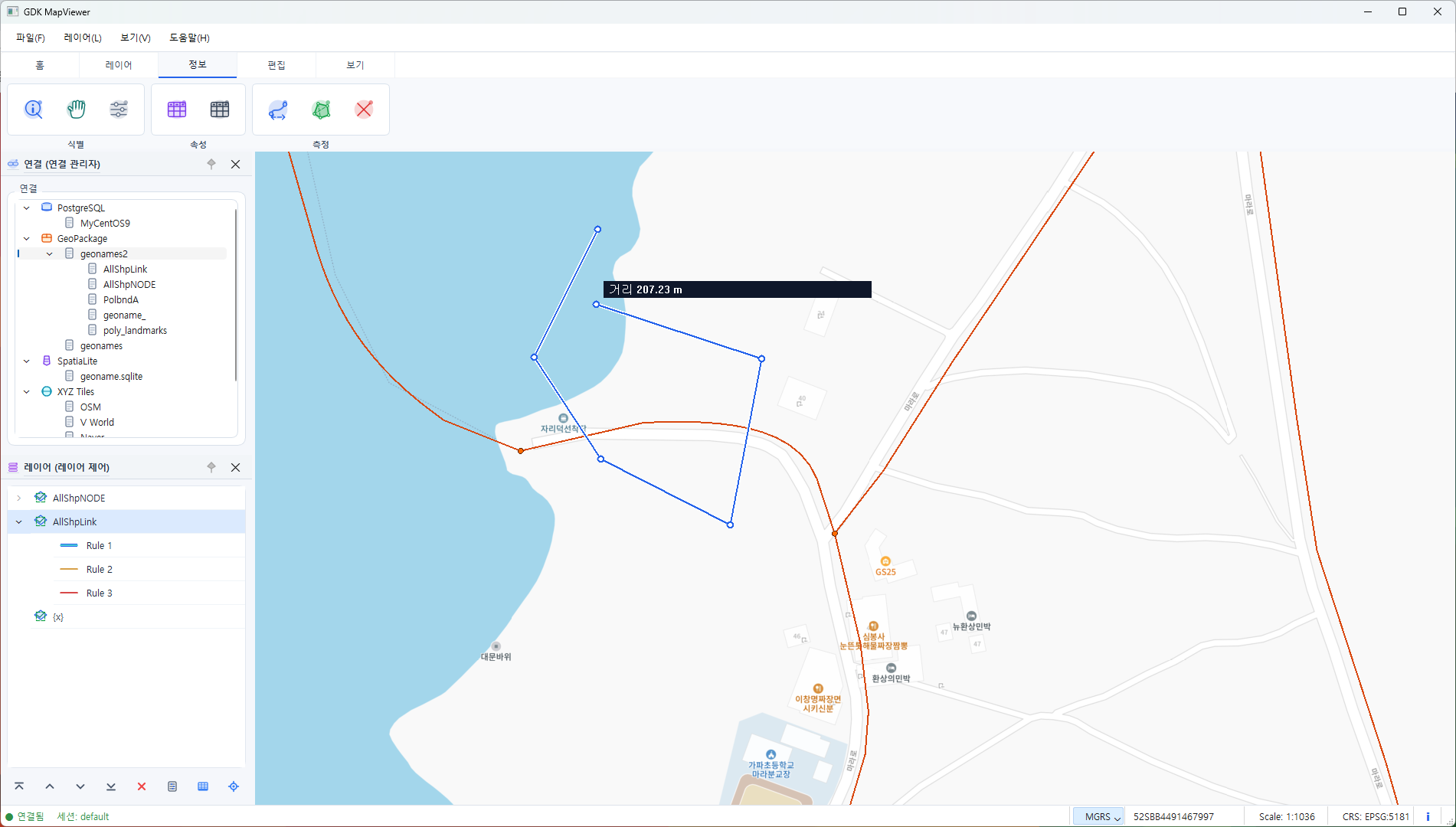
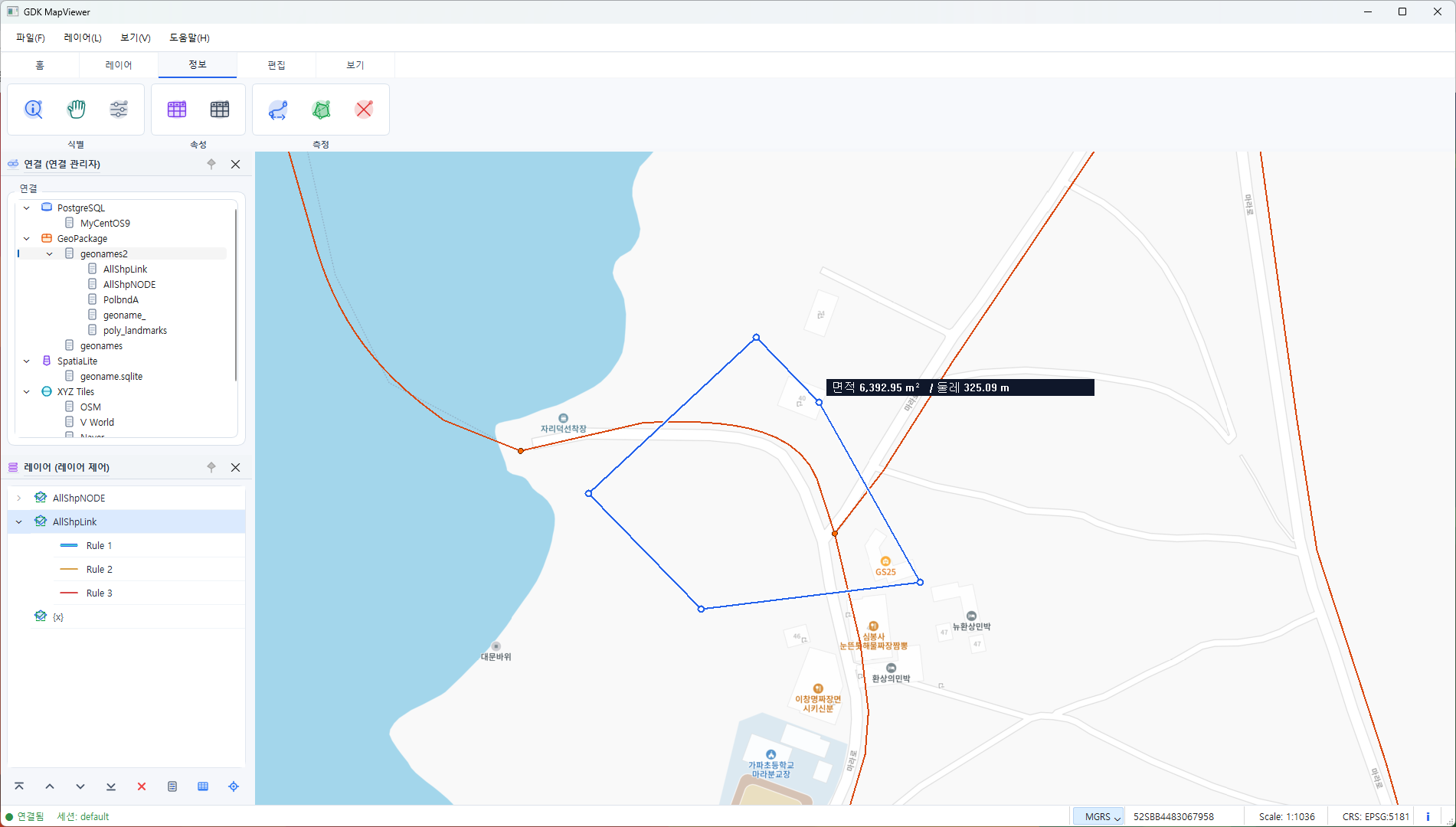
도구 고르기
기본 도구는 지도 컨트롤의 모드입니다. 컨트롤이 도구를 실행하고, 마우스와 키보드 입력을 도구에 전달하고, 도구가 그리는 임시 도형(측정선, 선택 사각형)을 지도 위에 그립니다. 응용 프로그램은 모드를 고르기만 합니다.
| 모드 바꾸기 | 모드가 바뀌면 | |
|---|---|---|
| Qt | GdkMapWidget::setToolMode(MapToolMode) |
toolModeChanged 시그널 |
| C# | GdkMapControl.ToolMode 속성 |
ToolModeChanged 이벤트 |
void MapHostWindow::createToolBar()
{
    auto* toolBar = addToolBar(QStringLiteral("Map"));
    auto* open = toolBar->addAction(QStringLiteral("Open..."));
    connect(open, &QAction::triggered, this, [this] {
        const QString path = QFileDialog::getOpenFileName(
            this, QStringLiteral("Open dataset"), QString(),
            QStringLiteral("GIS datasets (*.gpkg *.shp *.fgb *.mbtiles *.tif *.tiff);;All files (*.*)"));
        if (!path.isEmpty()) {
            openDataset(path);
        }
    });
    toolBar->addSeparator();

    // A built-in tool is a mode of the widget. The widget runs the tool; the host only chooses
    // the mode and handles what the tool asks for.
    const QList<QPair<QString, MapToolMode>> tools = {
        {QStringLiteral("Pan"), MapToolMode::Pan},
        {QStringLiteral("Select"), MapToolMode::SelectPoint},
        {QStringLiteral("Select by rectangle"), MapToolMode::SelectRect},
        {QStringLiteral("Measure distance"), MapToolMode::MeasureDistance},
        {QStringLiteral("Measure area"), MapToolMode::MeasureArea},
    };
    for (const auto& tool : tools) {
        const MapToolMode mode = tool.second;
        auto* action = toolBar->addAction(tool.first);
        connect(action, &QAction::triggered, this, [this, mode] { m_mapWidget->setToolMode(mode); });
    }
    connect(m_mapWidget, &GdkQt::GdkMapWidget::toolModeChanged, this, [this](MapToolMode mode) {
        statusBar()->showMessage(QStringLiteral("Tool: %1").arg(static_cast<int>(mode)));
    });
    toolBar->addSeparator();
    wireEditing(toolBar);
    toolBar->addSeparator();
    addMapDisplayActions(toolBar);
}
setToolMode는 모드를 바꾸지 못하면 false를 돌려줍니다.
예제가 쓰는 모드는 이동(Pan), 클릭 선택(SelectPoint), 사각형 선택(SelectRect), 거리 측정(MeasureDistance), 면적 측정(MeasureArea)입니다. 피처를 만들고 고치는 모드(CreatePoint, VertexEdit 등)는 편집 상태와 추가 연결이 필요합니다. 5장을 보십시오.
선택 실행하기
선택 도구는 선택을 직접 하지 않습니다. 사용자가 그린 도형과 적용 방식(바꾸기, 더하기, 뒤집기)만 정해서 응용 프로그램에 요청합니다. 실제 선택은 응용 프로그램이 실행합니다. 어떤 레이어가 선택 대상인지, 선택한 뒤 무엇을 보여 줄지는 응용 프로그램마다 다르기 때문입니다.
지도 위젯에 선택 콜백을 주고, 콜백에서 SelectionController::selectByToolRequest를 부릅니다. 컨트롤러가 세션에서 선택을 실행하고 결과를 상태 표시줄에 씁니다.
void MapHostWindow::wireSelection()
{
    // A select tool only fixes the shape and the apply mode (replace, add, toggle). The widget
    // hands the request to the host, and SelectionController runs it on the session and reports
    // the result in the status bar.
    m_settings = std::make_unique<GdkQt::AppSettingsManager>();
    m_selectionProvider = std::make_unique<GdkQt::SelectionProvider>(m_session.get());
    m_selectionController = std::make_unique<GdkQt::SelectionController>(
        m_session.get(), m_mapWidget, m_selectionProvider.get(), m_settings.get(), statusBar(),
        [this] { return m_layerPanel ? m_layerPanel->currentLayerId() : QString(); });
    m_mapWidget->setSelectionCallback([this](const GDK::glsMapToolSelectionRequest& request) {
        m_selectionController->selectByToolRequest(request);
    });
}
SelectionController의 생성자는 세션, 지도 위젯, SelectionProvider, AppSettingsManager, 상태 표시줄을 받습니다. 콜백이 컨트롤러를 잡고 있으므로, 컨트롤러를 없애기 전에 setSelectionCallback({})으로 콜백을 비웁니다(1장의 종료 순서).
어떤 레이어가 선택 대상이 되는지, 겹친 피처에서 무엇이 뽑히는지는 엔진의 선택 규칙입니다. 엔진 가이드 9장 선택을 보십시오.
다음 장
5장 편집에서 편집 모드를 시작하고 저장합니다.